
11Weather
See the rain now, the wind this week and the weather at every stop. Check it before you pack up, so the weather doesn't catch you out.
11.1Rain radar
Rain radar shows where rain is falling right now. It's a picture made by weather stations that bounce radio waves off rain. It's on when you first open the app.
The Radar button sits in the column of buttons on the right of the map. It turns green while the radar shows. It's the same switch as Rain Radar (live) on the Weather tab.
- Tap Radar to hide the rain.
- Tap Radar again to bring it back.
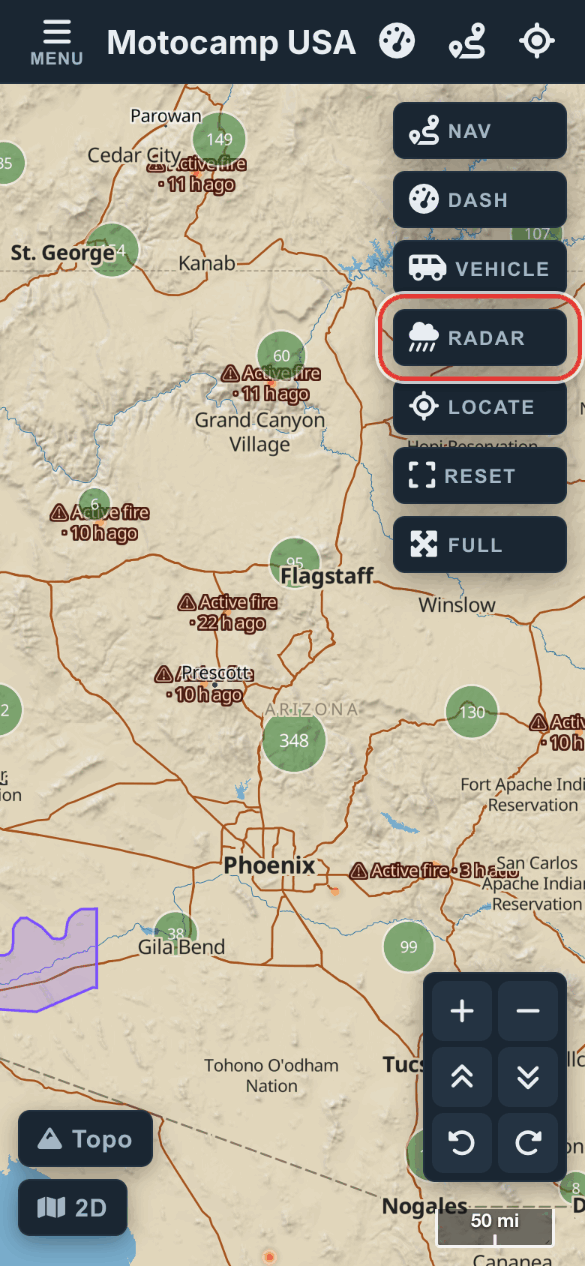
The radar is brightest when you're zoomed out. It fades as you zoom in, and it's gone at street level. Zoom out to see where the rain is.
| Colour | What it means |
|---|---|
| Pale blue | Drizzle |
| Blue | Light rain |
| Dark blue | Moderate rain |
| Orange | Heavy rain |
| Red to purple | Intense rain |
The app gets a new radar picture every 5 minutes.
Step by step, with pictures: See the weather on your trip
11.2The Weather tab
The Weather tab holds the weather switches for the map.
- Tap Menu at the top left.
- Tap Weather along the top of the menu.
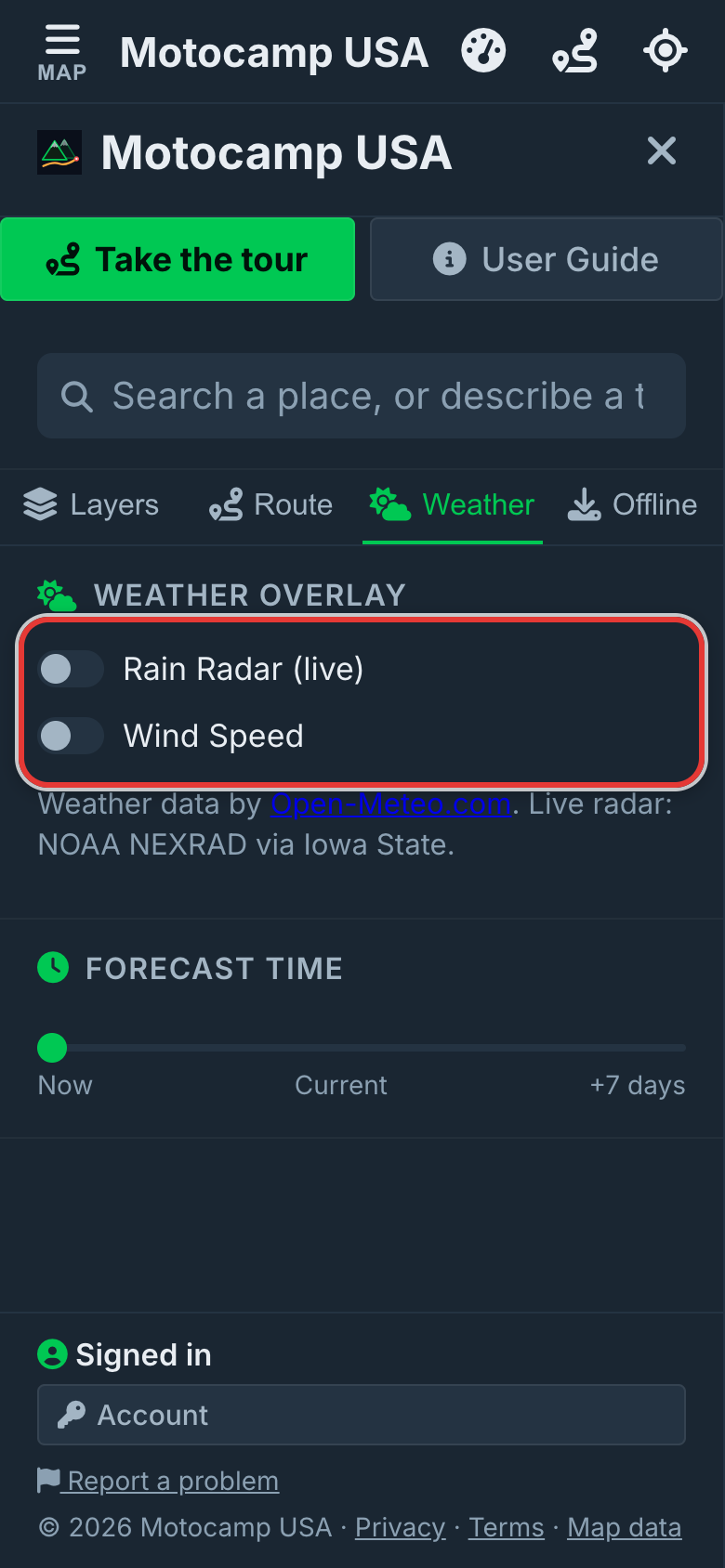
| Part | What it does |
|---|---|
| Rain Radar (live) | Shows rain falling now. On to start with. |
| Wind Speed | Shows wind across the map, with white lines that flow the way the wind blows. |
| Forecast Time | A slider that moves the wind forward in time. |
| Legend | Shows what the colours mean. |
| Location Weather | The weather at a spot you tap on the map. |
Only one of the two switches can be on at a time. Turning on Wind Speed turns off the radar, and the other way round.
11.3Wind Speed
Wind Speed shows which way the wind blows. Thin white lines stream across the map in the wind's direction.
- Tap Menu, then Weather.
- Tap the Wind Speed switch.
- Wait a moment while the switch says Loading weather.
The Legend shows the wind in mph, miles per hour.
| Legend | What it's like |
|---|---|
| Calm | Hardly any wind |
| 11mph | A light breeze |
| 22mph | A strong breeze |
| 34mph | A gale |
| 56mph+ | A storm |
Move the map, and the wind is worked out again after a couple of seconds.
11.4The Forecast Time bar
The Forecast Time bar is a slider under the switches. It runs from Now to +7 days, in three hour steps.
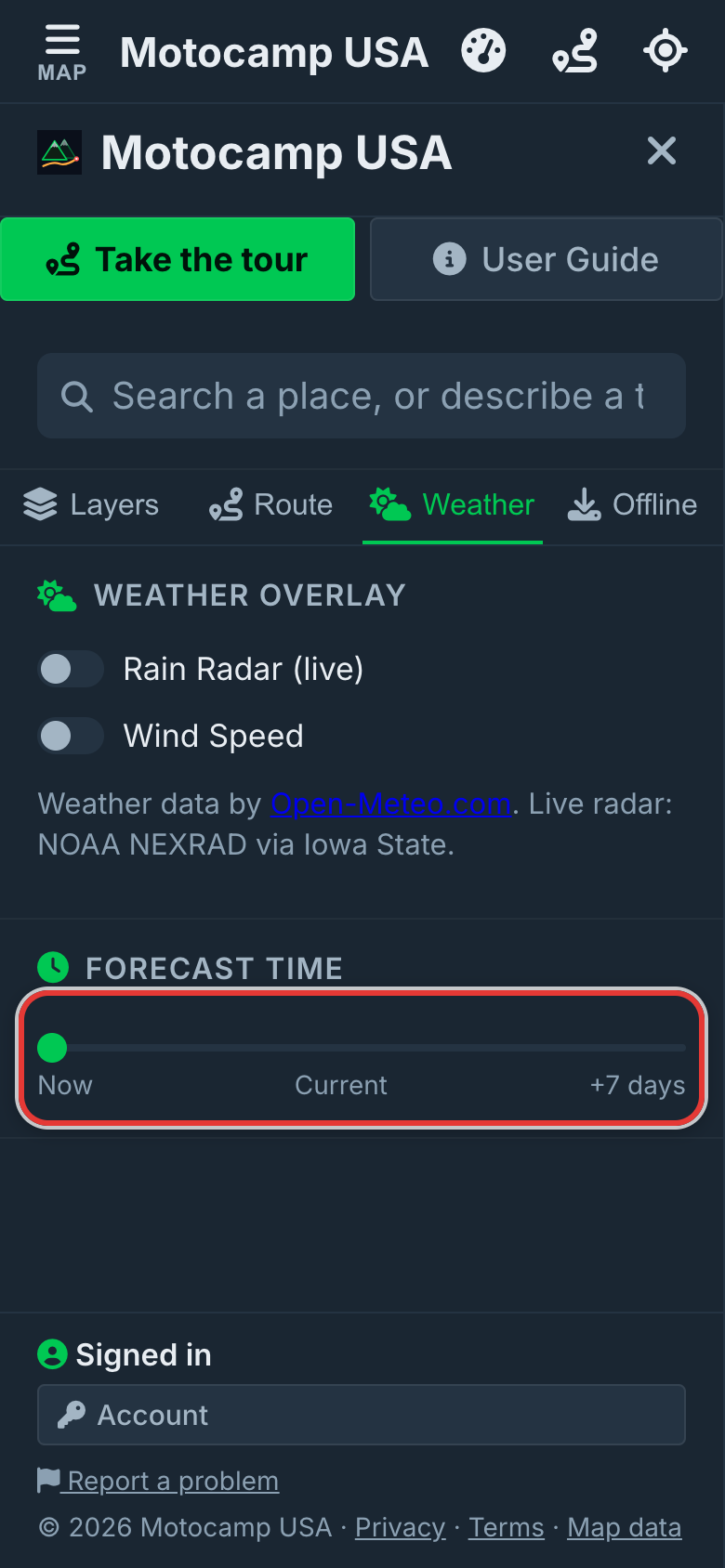
- Turn on Wind Speed.
- Slide the bar right to watch the wind change over the next week.
The label shows the day and the hour. The bar also sets the hour for Location Weather.
11.5Weather at a spot you tap
You can check the weather at any spot on the map.
- Make sure Rain Radar (live) or Wind Speed is on.
- Tap an empty part of the map, away from pins and your route.
- Tap Menu, then Weather, to read it under Location Weather.
| Figure | What it means |
|---|---|
| Picture and words | The sky, such as Partly cloudy or Light rain. |
| °F | The temperature. |
| mph | The wind, in miles per hour. |
| in | Rain, in inches. |
| Cloud % | How much of the sky is cloud. |
| % humidity | How damp the air is. |
Hold your finger down on the map to open What's here. It shows seven days of weather for that spot, with the high, the low and the rain for each day.
11.6Weather at each stop on your route
Plan a route, and the Route Summary shows a weather card for each place. There's one for the Start, one for each Stop and one for the Destination.
- Tap Menu, then Route.
- Add your start and end, then tap Plan Route.
- Scroll down the Route Summary to the cards for each place.
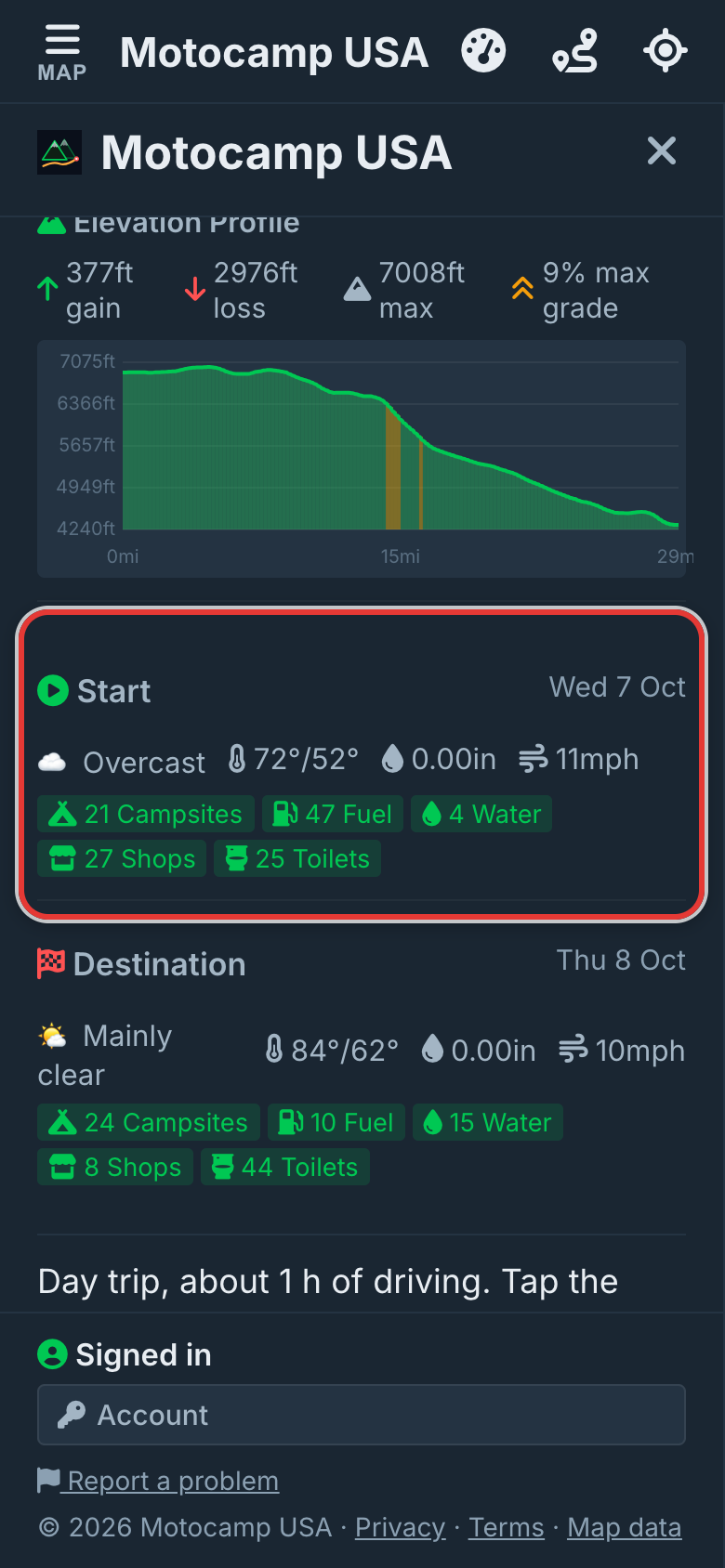
Each card shows one day. The Start shows today. The first stop shows tomorrow, the next stop the day after, and so on. After seven days, every later stop shows day seven.
| Figure | What it means |
|---|---|
| Date | The day this card is for. |
| Picture and words | The sky that day, such as Overcast or Heavy rain. |
| Two temperatures | The high and the low for the day, in °F. |
| in | How much rain is expected that day, in inches. |
| mph | The strongest steady wind that day, in miles per hour. |
Each card also lists campgrounds, fuel, water, shops and toilets near that place.
11.7Weather warnings on your route
The app checks each place's forecast for bad weather. Anything it finds goes in the Warnings list in the Route Summary.
| Warning | When it shows |
|---|---|
| Heavy rain, heavy snow, heavy showers or a thunderstorm at a place | When that's the forecast. It says how many inches to expect and to think about waiting or going another way. |
| Heavy precipitation at a place | Rain or snow of more than about 0.4 inches in the day. |
| Strong winds at a place | Wind over about 34 mph. Over about 45 mph it's marked as serious. |
| Freezing conditions at a place | A low below 32°F. It warns of ice on the road. |
| Extreme heat at a place | A high over 104°F. It tells you to carry extra water. |
Official weather warnings are on the map too. If one covers part of your route on your trip day, it's listed as well.
Step by step, with pictures: See the weather on your trip
11.8Official warnings on the map
Official warnings show as purple areas on the map. Each has its name on it. They come from the National Weather Service.
There's no switch for them. They're always on, because a warning you have to look for is no help.
| Colour | What it means |
|---|---|
| Deep purple | The most serious level. |
| Purple | A serious warning. |
| Pale purple | A lower level. |
- Tap a purple area.
- Read the card. It shows the warning, the area, what to do, when it starts and ends, and who issued it.
With signal, the app looks for new ones every 10 minutes.
There's also a Weather Alerts switch, under Live Hazards on the Layers tab. It's off to start with. It adds a dot for each serious National Weather Service warning.
| Dot | What it means |
|---|---|
| Red | Extreme |
| Orange | Severe |
| Grey | Moderate |
Tap a dot to read the warning and see the area it covers.
11.9Weather with no signal
When you plan a route, the app saves a week of forecasts along it to your phone. It takes a point about every 25 miles, up to 25 points.
When it's done, the Route Summary shows Offline ready, with the words 7-day weather cached along this route. Those forecasts keep working when you lose signal.
A forecast more than two hours old says when it was saved. It refreshes by itself when you're back in signal.
Downloading a state on the Offline tab saves some forecasts for it too.
11.10Temperatures and units
The app uses US units, and there's no switch to change them.
| What | Shown in |
|---|---|
| Temperature | °F |
| Rain | in, inches |
| Wind | mph, miles per hour |
| Air pressure on the Dash | inHg, inches of mercury |
The Dash button opens a dashboard with your speed and height. Its top bar shows the temperature, the air pressure and the wind where you are. An arrow beside the pressure shows if it's rising or falling. Falling pressure often means bad weather is coming. Its RAIN panel is a small radar of the area around you.
11.11Webcams
See a pass or the coast before you drive there. The Webcams switch puts cameras on the map, like Donner Summit on I-80 and Berry Summit on SR-299.
- Tap Menu at the top left.
- Tap Layers along the top of the menu.
- Under Live Hazards, turn on Webcams.
- Tap a camera on the map.
A purple camera looks at mountains or a pass, a teal one at the coast, and a small grey one at the road.
Caltrans cameras in California show their picture right on the map. Thousands more cameras across the country belong to their owners, so tapping one opens the owner's page.
11.12Where the weather comes from
| What | Where it comes from | How fresh |
|---|---|---|
| Rain radar | NOAA weather radar stations, through Iowa State University | New picture every 5 minutes |
| Forecasts at stops and at a spot | Open-Meteo, a free weather forecast service | Checked again after about 15 minutes |
| Wind Speed | Open-Meteo | Seven days ahead, hour by hour |
| Official warnings | National Weather Service | Checked every 10 minutes |
| Dash weather | Open-Meteo | Every 5 minutes while the Dash is open |
| Webcams | Caltrans, and webcams listed in OpenStreetMap | Each camera's own picture, most every 5 to 15 minutes |
NOAA is the US weather agency.